Design Custom Promotional Products Online
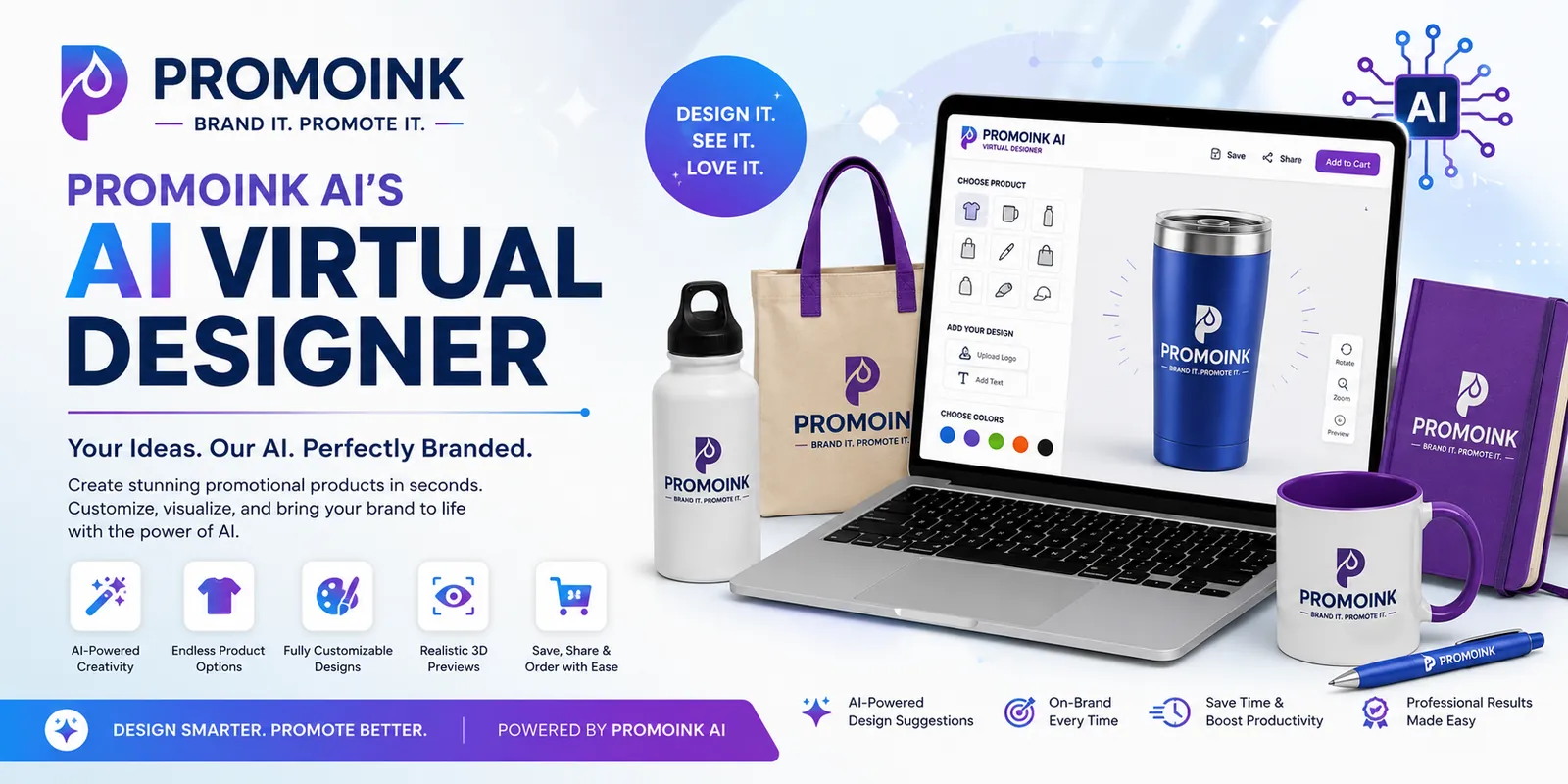
The PromoInk AI Virtual Designer makes it easy to personalize promotional products from your computer, tablet, or phone.
Choose a product, upload your logo, add text, arrange your artwork, and preview your design before ordering. AI-powered assistance helps simplify the creative process so you can move from an idea to a customized product faster.
What You Can Do
Use the PromoInk AI Virtual Designer to:
- Upload a logo or design
- Add custom text
- Arrange design elements
- Adjust artwork size and position
- Explore product and imprint colors
- Preview eligible products
- Save a design for later
- Share a design with your team
- Add customized products to your cart
- Submit your design for production review
Available features may vary by product, decoration method, device, and file type.
How to Use the AI Virtual Designer
Step 1: Choose a Product
Browse more than 26,000 promotional product options and select the item you want to customize.
Before designing, review:
- Available product colors
- Minimum order quantity
- Imprint locations
- Decoration methods
- Production time
- Product dimensions
- Available rush options
Step 2: Select a Product Color
Choose the product color that best fits your brand or campaign.
Consider how your logo will contrast with the background. A light-colored logo may work best on a dark product, while a dark logo may be easier to see on a lighter product.
Product colors displayed on a screen are approximate and may vary from the finished merchandise.
Step 3: Select an Imprint Location
Choose where you want your design to appear.
Depending on the product, available locations may include:
- Front
- Back
- Left side
- Right side
- Sleeve
- Lid
- Handle
- Wraparound area
- Multiple imprint locations
Additional imprint locations may increase the price and production time.
Step 4: Upload Your Artwork
Select Upload Artwork and choose your logo or design file.
Preferred file types generally include:
- AI
- EPS
- SVG
- Print-ready PDF
High-resolution PNG, JPG, or TIFF files may also be accepted for certain products and decoration methods.
For the best results:
- Use the highest-resolution file available
- Upload vector artwork when possible
- Avoid screenshots or images copied from websites
- Make sure small text is readable
- Confirm that you have permission to use the artwork
If your file needs preparation, our team will explain the available options before production.
Step 5: Add Custom Text
Select Add Text to enter a:
- Company name
- Event name
- Website address
- Telephone number
- Slogan
- Employee name
- Campaign message
- Call to action
Check all spelling, capitalization, punctuation, dates, telephone numbers, and website addresses carefully.
Step 6: Arrange Your Design
Move, resize, and position the artwork within the designated imprint area.
Keep important elements inside the safe-design area. Artwork extending outside the available imprint area may be cropped or may require adjustment.
Avoid making detailed artwork or text too small to reproduce clearly.
Step 7: Use AI Design Assistance
Where available, AI-powered design assistance can help you explore:
- Layout ideas
- Slogan suggestions
- Text combinations
- Color directions
- Campaign themes
- Simplified design concepts
- Alternative creative approaches
Describe the look you want and provide clear instructions.
Example:
Create a clean, professional layout using our logo, company name, and website. Use a modern style with strong contrast.
AI-generated suggestions are starting points. Review every design carefully before ordering.
Step 8: Preview Your Product
Use the virtual preview to see how your design may appear on the selected product.
Review:
- Product color
- Artwork
- Spelling
- Imprint color
- Design size
- Imprint position
- Orientation
- Selected imprint location
The online preview is a digital representation. It may not show the exact scale, color, texture, print quality, or final production result.
Step 9: Save or Share Your Design
If available, save the design to your account or share it with coworkers, clients, or decision-makers for review.
Saving a design does not reserve inventory, lock in pricing, or guarantee a production date.
Step 10: Select Your Quantity
Enter the number of products you need. Pricing may change based on:
- Quantity
- Product color
- Decoration method
- Number of imprint colors
- Number of imprint locations
- Setup requirements
- Production speed
- Shipping destination
Review the updated order estimate before continuing.
Step 11: Add the Product to Your Cart
When the design is ready, select Add to Cart or Continue to Order.
Review the complete order, including:
- Product
- Color
- Quantity
- Sizes, if applicable
- Artwork
- Imprint options
- Production method
- Shipping address
- Requested delivery date
- Estimated charges
Step 12: Submit Your Order
Complete the checkout process and submit your order.
Submitting an order does not always mean it has entered production. Product availability, artwork, pricing, production requirements, and delivery timing may need to be confirmed.
Step 13: Review Your Final Proof
A final production proof may be provided when required.
Carefully review:
- Spelling and numbers
- Logo and artwork
- Product selection
- Product color
- Imprint color
- Design size and position
- Quantity
- Shipping information
Production may begin immediately after proof approval. PromoInk AI is not responsible for customer-supplied errors or errors visible in an approved proof.
Tips for a Better Design
A clear logo and short message are usually easier to recognize than a crowded design.
Choose imprint colors that stand out against the product color.
Avoid very small lettering, thin lines, or overly detailed typefaces.
A layout that works on a tote bag may not work on a pen, bottle, or small tech accessory.
Verify every name, date, telephone number, address, and website before approving the design.
Vector files generally produce the clearest results and can be resized without losing quality.
Sample AI Design Instructions
Create a clean layout using our logo and website. Keep the style professional and use our navy and white brand colors.
Design an energetic tradeshow imprint using our logo, short slogan, and QR code. Make the company name easy to read.
Create a modern employee appreciation design with our logo and the message “Thank You for Making a Difference.”
Design an elegant holiday message for clients using our logo. Keep the wording inclusive and professional.
Create a bold campus design featuring the school name, graduation year, and mascot colors.
Artwork and Intellectual Property
Only upload content you own or are authorized to use.
By submitting artwork, you confirm that you have permission to reproduce all logos, photographs, trademarks, names, slogans, and other protected material.
PromoInk AI may decline or pause a design if ownership or authorization is unclear.
Important Information About AI-Generated Designs
AI-generated or AI-assisted designs may be incomplete, inaccurate, or similar to content created for other users. PromoInk AI does not guarantee that an AI-generated design is original, exclusive, copyrightable, or free from third-party rights.
Customers are responsible for reviewing AI-assisted content before commercial use.
Do not enter confidential, regulated, or sensitive personal information into an AI tool.
Frequently Asked Questions
Do I need design experience?
No. The Virtual Designer is intended to help customers create and arrange straightforward promotional product designs online.
Can I upload my own logo?
Yes. Upload a high-quality version of your authorized logo. Vector files are generally recommended.
Can the AI create a complete logo for my company?
AI may help develop creative concepts where that feature is available. However, AI-generated logos should be reviewed for originality, trademark availability, and legal suitability before use.
Is the virtual preview my final proof?
No. The online preview is an approximate representation. A separate production proof may be required before manufacturing.
Can I change my design after placing an order?
Contact Customer Service immediately. Changes may not be possible after artwork preparation, proof approval, product allocation, setup, or production begins.
Can I design from my phone?
The designer may be used on compatible mobile devices, although a desktop or tablet may provide more precise control for detailed artwork.
Can someone help me with my design?
Yes. Contact PromoInk AI if you need assistance with artwork, product selection, imprint requirements, or your order.
Can I use the designer for rush products?
Yes, when the selected product supports online customization and qualifies for rush service. Rush eligibility depends on inventory, artwork, quantity, approvals, payment, and cutoff times.
Start Creating
Bring your promotional product idea to life with the PromoInk AI Virtual Designer.
Upload your logo, personalize your product, preview the design, and continue directly to ordering—all in one convenient online experience.